Annotation(注釈)
 左クリック [
Annotation(注釈)オブジェクトは2Dオブジェクトで、シーンの2D図面にAnnotation(注釈)を追加する事ができます。Annotationオブジェクトには、2Dシンボル、テキスト、ダイナミック2Dジオメトリ、2D要素の組み合わせを入力できます。
vaAnnotation コマンドを実行すると、 Annotation insert ダイアログボックスが開きます。このダイアログボックスでは、全てのオブジェクトパラメータのリストと、選択したスタイルの2D/3Dプレビューが表示されます。
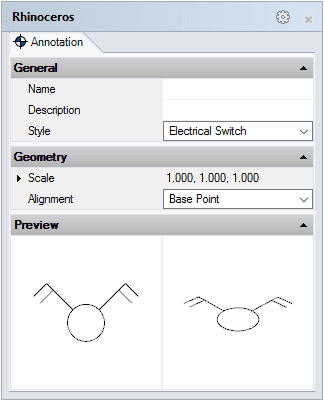
Annotation オブジェクト insert dialog
Steps:
- 使用したい styleを選択し、基本的なオプションを定義します。
- 任意の位置を左クリックして、挿入位置を指定します。
- Annotationの方向をカーソルで指定します。希望の向きになったら、再度クリックして決定します。
Annotationは必要な数だけ作成でき、ENTERまたはESCを押す事でキャンセルできます。
コントロールポイント 
Annotation(注釈)オブジェクトには、選択したalignment(位置合わせ)オプションに従って、単一のコントロールポイントが挿入位置に配置されます。
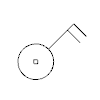
Annotation object コントロールポイント
挿入オプションとパラメータ
全てのAnnotationオブジェクト挿入オプションとパラメータは、Object Propertiesダイアログボックス またはVisualARQ Propertiesセクション(Rhino プロパティパネル
 )で編集可能です。
General
- Type: annotation(注釈)
- Name: 他のannotationオブジェクトと区別するため、任意で名前を記入できる欄
- Description: メモ記入欄
- Style: 利用可能な annotation styles リスト
Geometry
- Alignment: Annotationオブジェクトのバウンディングボックスを制限に利用した、位置合わせ。
- Base point(基点): そのAnnotationスタイルに使用されるブロックの基点の位置。
- 左上、中央上、右上
- 左中央、中心、右中央
- 左下、中央下、右下
- Rotation:Annotation(注釈)が、上記Alignmentにて設定した中心軸の周りを回転する角度。